Managing images today can quickly become overwhelming. Between photos, design assets, screenshots, and downloads, it’s easy to lose track of files scattered across folders. This is where XnView stands out. It is not just an image viewer—it is a complete solution for browsing, organizing, editing, and converting images efficiently.
What makes XnView special is its balance between speed and capability. It loads quickly, handles large image collections with ease, and offers a wide range of tools without feeling complicated. Whether you are a casual user sorting photos or a professional managing thousands of assets, XnView provides a smooth and reliable workflow.

Effortless Image Browsing: Find What You Need Quickly
Key highlights:
- Thumbnail-based navigation
Images are displayed as thumbnails, making it easy to scan through folders visually. - Fast loading performance
Even directories with hundreds or thousands of images open quickly. - Multiple viewing modes
Switch between thumbnail view, full-screen preview, or detailed file lists depending on your needs. - Folder tree navigation
A familiar sidebar lets you move through directories just like a file explorer.
👉 Example:
If you’re searching for a specific vacation photo among hundreds, you can quickly scroll through thumbnails instead of opening files one by one.
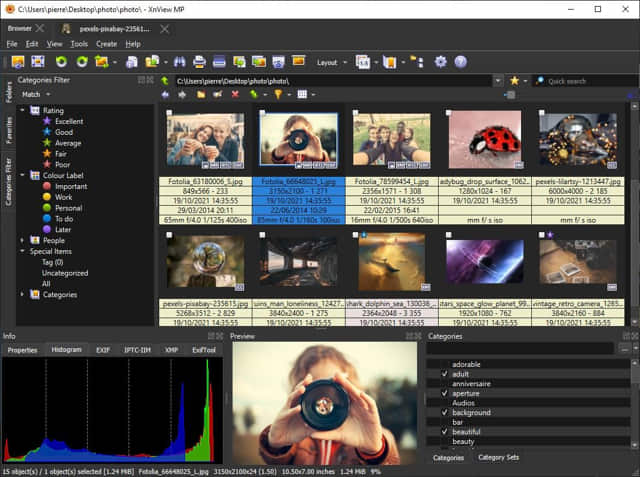
Powerful Image Organization: Stay in Control
What makes it effective:
- Tags and categories
Assign keywords, ratings, or labels to images for easy sorting. - Search and filtering
Quickly find files based on name, date, size, or metadata. - Batch renaming
Rename multiple files at once using patterns, saving time and effort. - Metadata support
View and edit EXIF, IPTC, and other metadata embedded in images.
👉 Example:
A photographer can tag images with keywords like “portrait” or “landscape” and later filter them instantly when building a portfolio.
Wide Format Support: Open Almost Anything
Why this matters:
- Supports hundreds of formats
From common formats like JPEG and PNG to specialized or older formats. - RAW image support
Open and preview images directly from many digital cameras. - No need for multiple tools
You can manage all your images in one place.
👉 Example:
If you receive design assets in different formats, XnView can open them all without requiring additional software.
Batch Processing: Save Time with Automation
Key capabilities:
- Batch conversion
Convert multiple images to a different format in one step. - Resize and adjust
Change dimensions, resolution, or compression settings for large groups of files. - Apply effects in bulk
Add watermarks, adjust brightness, or apply filters across many images.
👉 Example:
If you need to upload dozens of images to a website, you can resize and compress them all at once instead of editing each individually.
Basic Editing Tools: Quick Adjustments Made Easy
Included tools:
- Crop and rotate
Adjust framing and orientation بسهولة. - Color adjustments
Modify brightness, contrast, and saturation. - Red-eye removal
Fix common photo issues quickly. - Filters and effects
Apply simple enhancements to improve images.
👉 Example:
You can quickly crop a photo, adjust its brightness, and save it—without needing a more complex editor.
Performance and Usability: Built for Efficiency
What improves the experience:
- Lightweight design
Runs smoothly on a wide range of systems. - Customizable interface
Adjust toolbars and layouts to suit your workflow. - Dual-pane view
Compare folders or images side by side. - Slideshow mode
Display images in full-screen presentations.
👉 Example:
You can compare two folders of images side by side to quickly identify duplicates or select the best shots.
What Makes XnView Unique?
XnView stands out because it combines multiple roles into a single, efficient tool.
1. All-in-one functionality
It serves as a viewer, organizer, converter, and basic editor.
2. Exceptional format compatibility
Few tools support as many image formats.
3. Strong batch processing
Automates repetitive tasks effectively.
4. Fast and lightweight
Handles large collections without slowing down.
5. Flexible for different users
- Casual users can browse and organize photos
- Professionals can manage large asset libraries
A Simple Workflow Example
Here’s how XnView can fit into a typical workflow:
- Browse your folders
Use thumbnails to locate images quickly. - Organize files
Add tags, ratings, or rename files. - Select multiple images
Choose a group for processing. - Apply batch operations
Convert, resize, or enhance images. - Export or share
Save files in the desired format.
Final Thoughts
XnView offers a practical and efficient way to manage images of all kinds. It avoids unnecessary complexity while still providing powerful tools for organization, conversion, and editing.
Whether you’re sorting personal photos, preparing images for a project, or managing a professional archive, XnView helps you stay organized and productive—without slowing you down.
Website: https://www.xnview.com/en/