In a world filled with feature-heavy image editors, LazPaint takes a refreshing approach: it focuses on simplicity, clarity, and efficiency—without giving up the tools you actually need. Whether you’re editing photos, creating simple graphics, or experimenting with digital art, LazPaint offers a smooth and approachable experience that feels familiar from the very beginning.
What makes LazPaint especially appealing is how it blends classic design ideas with modern flexibility. It doesn’t try to overwhelm you with complexity—instead, it gives you just the right tools, presented in a way that feels natural and easy to learn.
A Flexible Interface: Simple, Familiar, and Adaptable
Key highlights:
- Hybrid window system
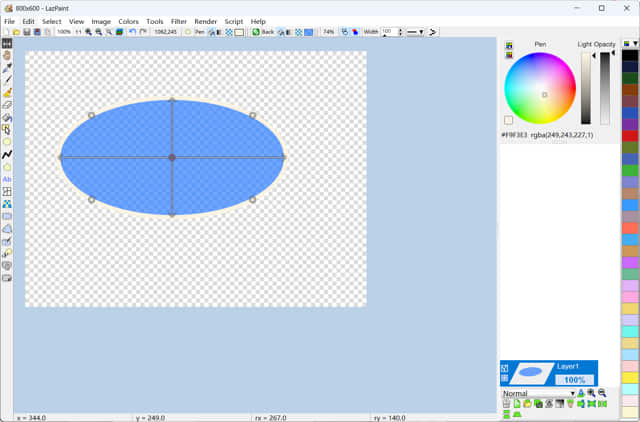
LazPaint combines a single main window with optional floating panels. You can keep everything neatly organized in one space or separate tools into movable panels—whichever suits your workflow. - Customizable panels
Important tools like the toolbox, color picker, and layer stack can be shown or hidden easily. You can even toggle all tool windows at once using a simple shortcut. - Familiar menu layout
Menus like File, Edit, Select, and Filter are arranged in a traditional way, making it easy to find what you need—especially if you’ve used other image editors before. - Dark theme option
For those who prefer a softer look on the eyes, LazPaint includes a dark interface mode. - Helpful status bar
At the bottom of the screen, a status bar provides useful hints, such as tool tips and selection dimensions.
👉 Example:
If you’re cropping an image, the status bar can show the exact size of your selection, helping you make precise adjustments without extra steps.
Core Editing Tools: Everything You Need, Nothing You Don’t
Core capabilities:
- Drawing tools
Use brushes, pencils, and shapes to create or edit images. These tools are straightforward, making them ideal for quick sketches or annotations. - Selection tools
Rectangle, ellipse, and freehand selections allow you to isolate and edit specific parts of an image. - Fill and gradient tools
Easily add color fills or gradients to areas, useful for backgrounds or design elements. - Transformations
Resize, rotate, and flip images or selections with simple commands.
👉 Example:
If you’re designing a simple poster, you can draw shapes, fill them with gradients, and adjust their size—all within a few clicks.
Layer Support: Build and Edit with Control
Why layers matter:
- Non-destructive editing
Work on different parts of your image separately without affecting others. - Transparency support
Create images with transparent backgrounds, useful for logos and web graphics. - Simple compositing
Combine multiple images into one composition.
👉 Example:
You can place text on one layer, a photo on another, and a background on a third—then adjust each independently.
Filters and Effects: Enhance Your Images Easily
Key features:
- Color adjustments
Modify brightness, contrast, and saturation to improve photos. - Blur and sharpen filters
Add softness or enhance details. - Artistic effects
Apply creative transformations to give images a unique look. - Render tools
Generate patterns or textures directly within the software.
👉 Example:
You can take a basic photo, adjust its colors, add a slight blur for depth, and apply a texture overlay for a stylized effect.
Productivity and Ease of Use: Designed for Efficiency
What helps you work faster:
- Toolbar shortcuts
Common actions are available as icons, reducing the need to navigate menus. - Keyboard shortcuts
Speed up repetitive tasks with simple key combinations. - Script support
Automate certain actions or apply repeated effects more efficiently.
👉 Example:
If you frequently resize images for web use, you can quickly apply the same steps using shortcuts or scripts.
What Makes LazPaint Unique?
LazPaint stands out not because it tries to do everything, but because it does the right things well.
1. Lightweight and fast
It runs smoothly even on modest systems, making it accessible to a wide range of users.
2. Beginner-friendly design
The interface is easy to understand, reducing the learning curve.
3. Flexible workspace
You can customize how tools and panels are arranged.
4. Practical feature set
It focuses on real-world needs instead of overwhelming users with rarely used tools.
5. Open-source accessibility
Being free and open-source, it’s available to everyone without restrictions.
A Simple Workflow Example
Here’s how you might use LazPaint in a typical project:
- Open or create an image
Start with a blank canvas or import a photo. - Make selections
Choose specific areas to edit. - Apply edits and effects
Adjust colors, add shapes, or apply filters. - Use layers for organization
Separate elements for easier control. - Finalize and export
Save your work in the desired format.
Final Thoughts
LazPaint offers a refreshing alternative to complex image editors. It focuses on clarity, usability, and practical tools—making it an excellent choice for anyone who wants to edit images without getting lost in complicated features.
Whether you’re making quick edits, creating simple graphics, or learning the basics of digital art, LazPaint provides a smooth and enjoyable experience that helps you focus on creativity rather than complexity.
Website: https://lazpaint.blogspot.com/ https://lazpaint.github.io/